How to set up your church’s Google Business Profile
07 July 2025
07 July 2025
A Google Business Profile (you might remember it as “Google My Business”) is the free listing that pops up on Google Search and Google Maps whenever someone looks for a place - be that a bakery, a charity shop or in our case a church. It holds your address, contact details, worship times, photos and reviews in one tidy card, so people can get the essentials without hunting round the internet. Once you’ve claimed and verified the profile, you (or a trusted volunteer) can edit it at any time, keeping the information up‑to‑date.
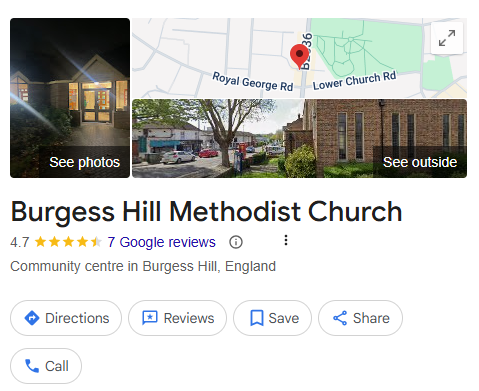
Think of the profile as your church’s online noticeboard. Most newcomers now begin their search for worship or community events on a smartphone; if your listing is accurate, Google will point them straight to your door, complete with directions, service times and accessibility notes. A well‑maintained profile also boosts your visibility in “churches near me” searches, helping you stand out among other local venues. Beyond visibility, complete and verified details build trust - photos of the church, recent reviews and correct opening hours reassure people that your congregation is active and welcoming. In fact, Google’s own guidance says clear, accurate information is rewarded with higher placement in local results. Keeping the listing current is therefore one of the simplest (and free!) ways to help neighbours, occasional visitors and holidaymakers find and feel confident about joining you for worship or mid‑week activities.
Before you start: You’ll need a Google account. If you don’t have one, ask a trusted friend or family member to help you create one at accounts.google.com.
| Common methods | What happens |
|---|---|
| Postcard | A code arrives by post (5–14 days). Enter the code online. |
| Phone or text | Google rings or texts a code to the church phone. |
| A code is sent to an official church email address. | |
| Video call / recording | You show the building, signage and worship space via your phone. |
Once verified, click Edit profile and fill in:
Use the Add update → Event button to advertise special services, coffee mornings or concerts. Add a title, start and end date, and a picture (a simple poster or photo works fine).
| ✅ Done? | Task |
|---|---|
| Claimed or created the listing | |
| Verified via postcard / phone / email / video | |
| Added correct address, phone, website | |
| Entered regular and special service times | |
| Uploaded at least three good photos | |
| Posted upcoming events | |
| Asked two or three members to write a review |